How to Secure Your Home Wi-Fi Network
Your router is the front door to every device at home. Change the default passwords, use modern encryption, update the firmware and set up a guest network.
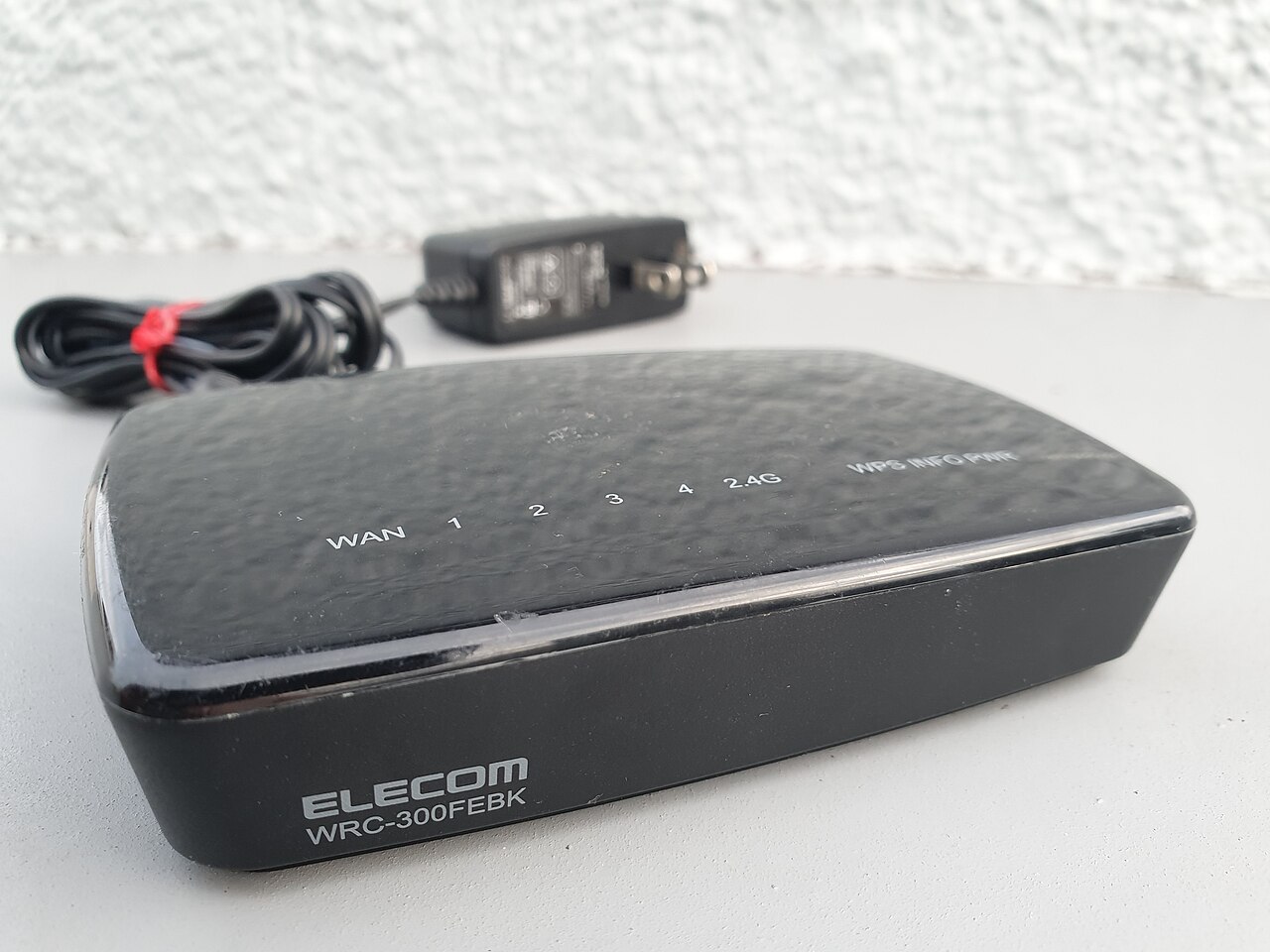

- Change the router's admin password and the default network name
- Use the strongest encryption your router supports, such as WPA3 or WPA2
- Keep router firmware updated
- Use a guest network for visitors and smart devices
Your Wi-Fi router connects your laptops, phones, TVs, cameras and smart speakers to the internet. If someone gets control of it, they can see traffic, block access, or use your connection. Securing it takes about half an hour and needs no special tools.
The FTC's consumer publication on wireless networks explains the basic risk: unless you take precautions, anyone with a wireless-ready computer can use your network, and activity done by an unauthorised person can be traced back to your account. That publication is old and some of its specific technical advice (such as the encryption types it discusses) has been overtaken by newer standards, but its core steps still hold: use encryption, change default settings and passwords, and keep equipment protected.
Step 1: Log in to the router and change the admin password
Your router has an administration page, usually reached by typing an address printed on the router's label into a browser while connected to your network. The login is often a default. The FTC guidance says the manufacturer probably assigned a standard default password for administration and tells you to change it. Anyone who knows the model may know the default.
Use a long, unique password, ideally stored in a password manager. CISA recommends passwords of at least 16 characters that are random and unique.
Step 2: Change the network name and set a strong Wi-Fi password
The network name (SSID) is often set by the manufacturer. Change it to something that does not reveal your name, address or the router model.
Your Wi-Fi password is different from the admin password. Make it long. A passphrase of several random words works well and is easy to type on a TV remote. See our passwords guide.
Step 3: Turn on the strongest encryption
Wi-Fi encryption scrambles what your devices send so a nearby person cannot read it. The FTC's guidance notes that manufacturers sometimes ship routers with encryption turned off and that you must turn it on. Look for the security or wireless settings page. Current routers typically offer WPA2 and WPA3 options. Choose WPA3 if all your devices support it, or WPA2 (often labelled WPA2-PSK with AES) if some older devices do not. Avoid the older WEP and WPA-TKIP options, and never leave the network open.
If your router offers only outdated encryption, it is time to replace it.
Step 4: Update the router's firmware
Routers run software, and flaws are found in that software. CISA's advice on updating software applies to every product you use: install updates promptly and turn on automatic updates where possible. Many routers have an update check on the admin page or an automatic option. Some require you to do it manually. Check the manufacturer's site for the latest version and for the date support ends. A router that no longer receives updates should be replaced.
Step 5: Turn off risky features
- Remote administration. Turn off the ability to manage the router from the internet unless you truly need it.
- WPS (Wi-Fi Protected Setup). The push-button and PIN features are convenient, but the PIN method has known weaknesses on many routers. Turn it off if you do not use it.
- Universal Plug and Play (UPnP) can open ports automatically. Consider turning it off if nothing you use needs it.
Menus differ by brand, so use the manufacturer's guide for exact names.
Step 6: Create a guest network
Most routers can create a separate guest network. Use it for:
- visitors,
- smart TVs, cameras and speakers that you do not fully trust,
- work devices kept separate from the family's.
A separate network limits what a compromised gadget can reach. Give it its own password and, if offered, enable client isolation.
Step 7: Check what is connected
Your router's admin page lists connected devices. Look for ones you do not recognise. If you find an unknown one, change your Wi-Fi password and reconnect your devices.
Step 8: Position and power
Place the router in a central, open spot, away from thick walls and metal. This improves signal, so you will not be tempted to weaken security to get better coverage. Know how to reset it, and note that a factory reset erases your settings, including the admin password you set.
Bonus: secure the devices, too
The NCSC's device security guidance stresses that securing devices, including phones, tablets, laptops and other connected devices, is an essential part of defending against internet threats. Keep each device updated, use screen locks, and remove apps you do not use. See keeping software updated.
A quick checklist
- Admin password changed
- Wi-Fi password long and unique
- WPA3 or WPA2 on
- Firmware current, auto-update on if offered
- Remote admin and WPS off
- Guest network for visitors and gadgets
- Unknown devices removed
The short version
Change both passwords, turn on modern encryption, update the firmware, turn off risky extras and use a guest network. If the router is too old to update, replace it.
Sources and further reading
How this page was made: drafted with the help of an AI writing assistant, then checked against the sources above. Software menus and policies change, so check the linked pages for the current version. Read our editorial policy or report a mistake.