Better and Safer Video Calls: Setup, Sound, Light and Privacy
Good audio, simple lighting and a few privacy settings make video calls easier for everyone. Use this checklist before your next meeting.
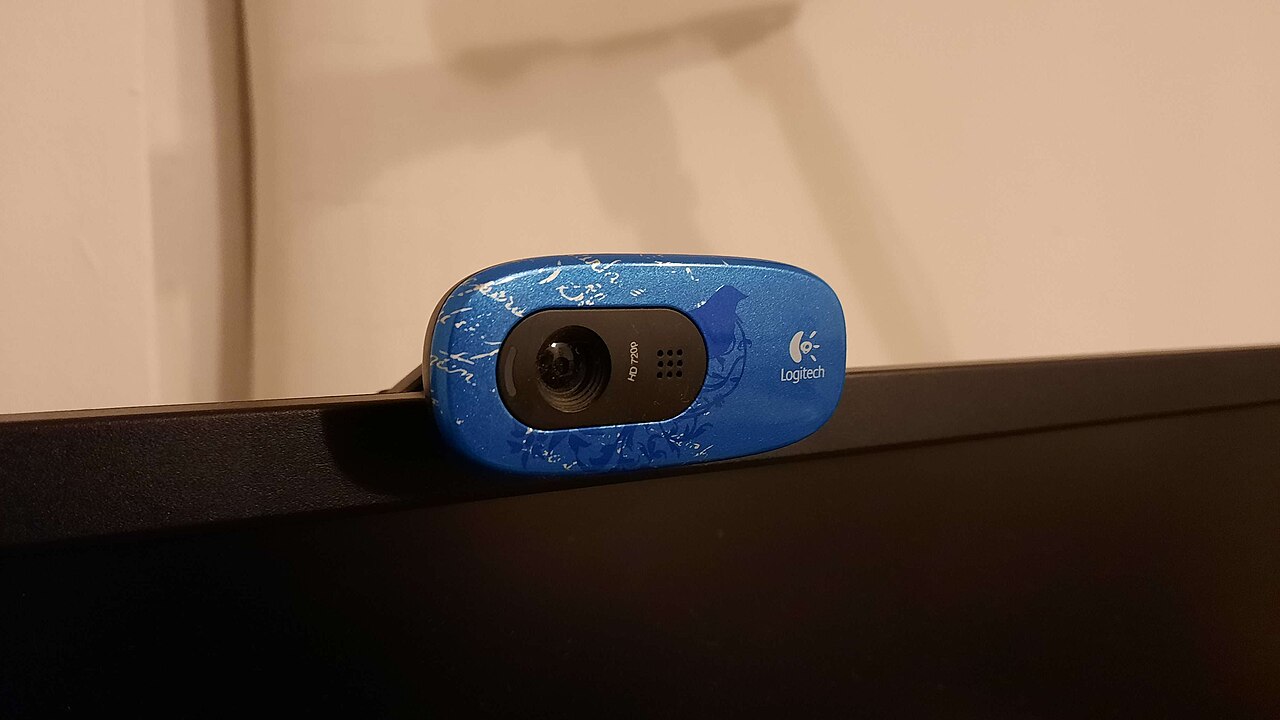

- Audio matters more than video, so fix sound first
- Put light in front of you and the camera at eye level
- Use the lobby, passcodes and invited-only access for meetings you host
- Check your surroundings and know where recordings are stored
Video calls are now part of ordinary work, and most of the common problems are fixable in a few minutes: people cannot hear you, you look like a silhouette, or the wrong person joins. This guide covers the setup and the security settings.
The practical tips about sound and lighting come from general good practice rather than a single standard. The privacy and security steps follow the UK National Cyber Security Centre's guidance on securing online meetings, which is written for small and medium-sized organisations.
Fix the audio first
People will tolerate a grainy picture, but not sound they cannot understand.
- Use a headset or earbuds with a microphone when you can. A mic close to your mouth picks up less room echo and less keyboard noise than a laptop microphone.
- Mute when you are not speaking. The NCSC recommends getting familiar with basic controls such as muting your microphone and turning off your camera.
- Choose the right devices in the app settings. Many calls go wrong because the app uses the wrong microphone or speaker. Check before the call, not during.
- Reduce echo. If people hear themselves, someone is using speakers and a microphone together. Switch to headphones.
- Pick a quiet room and close the door. Soft furnishings such as curtains and rugs reduce echo.
Camera position and lighting
- Put the camera at eye level. A laptop on a stack of books does the job. Looking down at the camera is unflattering and tiring. This also helps your posture. OSHA's workstation guidance describes a level, forward-facing head as part of a neutral working position, which is easier to keep when the screen is at the right height. See our ergonomics guide.
- Face the light. Sit facing a window or put a lamp behind the screen, aimed at you. Light behind you makes you a silhouette.
- Avoid mixed light. A bright window beside you and a warm lamp on the other side gives uneven colour.
- Check the framing. Your head and shoulders should fill the frame with a little space above your head.
- Look at the camera sometimes, not only at faces on the screen.
Bandwidth and stability
- Use a wired connection if you can, or sit close to the router. See our guide to securing and positioning your home Wi-Fi.
- Close heavy apps and downloads before calls.
- Turn off your camera if the connection is poor. Audio uses far less data.
- Join a minute early so you can test your setup.
Security settings for meetings you host
The NCSC's guidance for choosing and using online meeting services includes these steps:
- Choose a service that fits your needs. For personal use, free versions often provide enough security. Organisations typically need paid plans for controls such as managing multiple users securely.
- Download apps only from trusted sources such as official app stores or the provider's website, and avoid clicking ads and unsolicited links.
- Secure the admin account: use a strong, unique password, enable two-step verification, use passkeys where available, and keep the app up to date. See our two-step verification guide.
- Control who joins: allow direct access only to authenticated users and invited guests, require passcodes for unauthenticated users, and use a waiting area (the lobby) to check participants before admitting them.
- Consider blocking calls from outside your organisation and from unknown contacts.
- Never share meeting links or passwords in public spaces. If someone joins whom you do not recognise, the NCSC suggests politely asking who they are before continuing.
Protect privacy during the call
The NCSC also suggests:
- Check your surroundings before joining. Look at what is visible behind you, and consider a blurred or image background.
- Know the basic controls: muting, turning off your camera, and spotting when a meeting is being recorded.
- Review privacy settings before you use the service.
- Know where recordings, transcripts, chat logs and shared files are stored, and who can access them.
- Be aware of AI attendees. The NCSC notes these tools may record, transcribe or analyse meeting content, so understand what data they collect, how it is used and whether you can opt out.
- Keep data only as long as you have a reason to.
Screen sharing
- Share a single window rather than your whole screen when possible.
- Close email, chat and anything private before sharing.
- Turn off notifications to avoid surprise pop-ups.
- Stop sharing as soon as you have made your point.
Before an important call: a five-minute checklist
- Update the meeting app. See keeping software updated.
- Test microphone and camera in the app's settings.
- Check the background and lighting.
- Close apps and tabs you will not need.
- Mute notifications.
- Have the agenda and any files ready.
- If you host, enable the lobby and passcode.
The short version
Fix sound first, put the camera at eye level and the light in front of you, wire in if you can, and use the lobby, passcodes, two-step verification and sensible sharing habits to keep meetings safe.
Sources and further reading
How this page was made: drafted with the help of an AI writing assistant, then checked against the sources above. Software menus and policies change, so check the linked pages for the current version. Read our editorial policy or report a mistake.