How to Free Up Drive Space on Windows
A full drive slows your PC and blocks updates. Use Storage Sense, temporary file cleanup and OneDrive Files On-Demand to get space back.
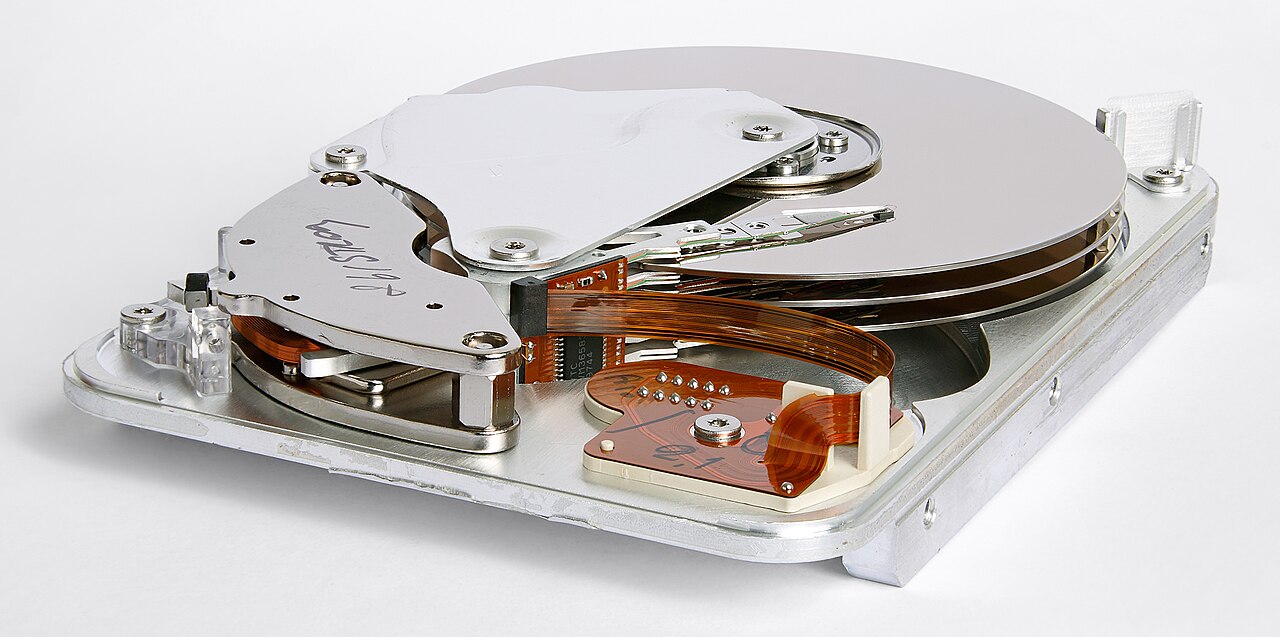

- Check free space in File Explorer under This PC
- Use Storage Sense to remove temporary files and Recycle Bin items
- Try the steps in order and check after each one
- Back up before you delete files you might need
Microsoft's support page on freeing up drive space says that if your PC is running out of storage you may notice slower performance or trouble installing Windows updates. Freeing up space can help your device run better and stay secure.
Step 1: Check how much space is left
On Windows 11, Microsoft says to select File Explorer on the taskbar and then This PC. The available space on your drive appears under Devices and drives.
Step 2: Try the steps in order
Microsoft suggests trying its steps in order and, after each one, checking whether you have freed up enough before moving on.
Storage Sense
Microsoft says Storage Sense can automatically free up drive space by getting rid of items you do not need, such as temporary files and items in your Recycle Bin. You can run it yourself: Start, Settings, System, Storage, Storage Sense, then Run Storage Sense now.
Temporary files
In Settings, System, Storage, choose Temporary files, tick the types you want to remove and select Remove files. Read the descriptions before you tick the boxes, as some categories may contain items you want.
Disk Cleanup
Search for Disk Cleanup in the Start menu and select the drive to clean up, as Microsoft's performance guide describes.
Uninstall unused apps
Settings, Apps, Installed apps. Select More options beside an app and choose Uninstall. Microsoft says this can free storage and reduce background activity.
OneDrive Files On-Demand
The Microsoft page lists a question on turning on OneDrive Files On-Demand, which keeps files in the cloud and downloads them when needed. Check Microsoft's page for the current steps and your plan's storage limit before relying on it. Cloud storage is not a backup by itself. See the 3-2-1 backup rule.
If you see a Low Disk Space error
Microsoft notes that if you used cleanup recommendations and then see a Low Disk Space error, your Temp folder may be quickly filling with application files used by the Microsoft Store. Its fix involves resetting the Microsoft Store, clearing the Store cache and running the Windows Update troubleshooter, then restarting. Follow Microsoft's exact steps on its page.
If you still cannot update
Microsoft says that if you continue to have trouble updating Windows because of low disk space after following the steps, resetting or reinstalling Windows might help. That removes or changes a lot, so make a full backup first.
Moving large files
- Move photos, videos and archives to an external drive. See SSD vs HDD for backups.
- Keep two copies of anything important before you delete the original.
- Organise what remains. See file naming and folders.
Safety notes
- Back up before deleting. Recycle Bin and temp cleanup are low risk, but personal files are not.
- Do not delete Windows system folders. Use built-in tools.
- Avoid unknown cleaner apps promoted by pop-ups. See tech support scams.
Next steps if the PC is still slow
See how to speed up a slow Windows PC.
The short version
Check free space, run Storage Sense, remove temporary files and unused apps, consider OneDrive Files On-Demand, and back up before deleting anything important.
Sources and further reading
How this page was made: drafted with the help of an AI writing assistant, then checked against the sources above. Software menus and policies change, so check the linked pages for the current version. Read our editorial policy or report a mistake.